How to build a kickoff brief from the sales cycle with Claude
A one-page kickoff brief that Claude generates on request, or on a schedule. Setup takes about 15 minutes — and some ongoing maintenance.

Nicholas Sainsbury
Co-Founder, Atlas
Contents
Implementation leads, account managers and onboarding managers all pick up accounts after signature, and all face the same problem: the promises live in four places and none of them is the handover doc. What was actually sold? What did the AE say on the pricing call that never made it into the SOW?
This guide walks through building a Claude skill that answers those questions in one page, with a citation on every line. The full skill file is at the end of this post.
Before you start
Who this is for
Implementation leads, account managers and onboarding managers who pick up accounts after signature and need to know what was sold and promised.
What you need
- A Claude plan with code execution and file creation switched on, to enable skill creation.
- Connectors for your drive, call transcripts, CRM, email, and any other tool holding critical sales material.
- A bit of patience for trial and error, plus optimisation of the new workflow.
The finished result
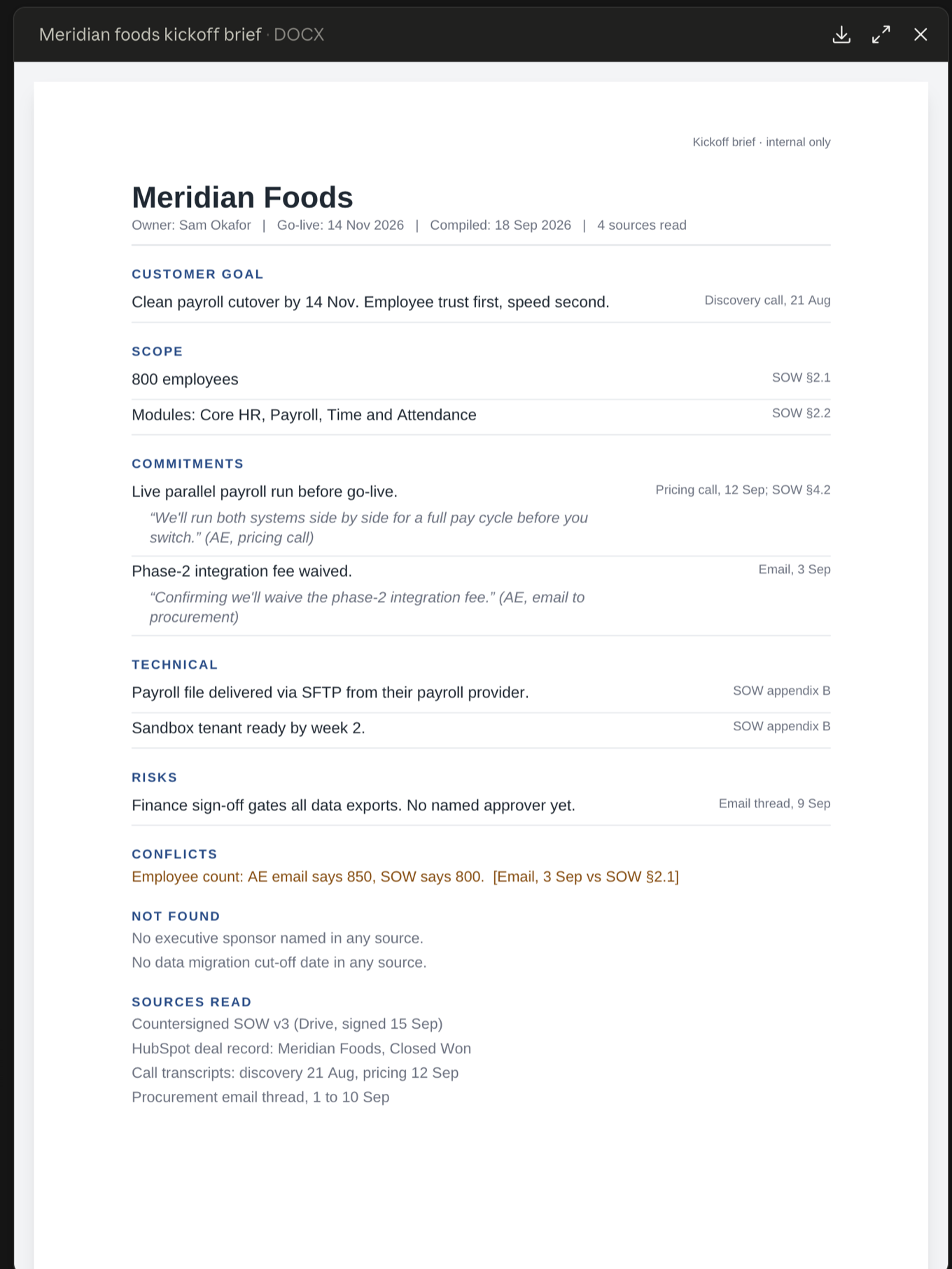
This setup asks Claude for a Word document and gives it a template to follow. Every scope, commitment, technical and risk line carries a source — a document plus a date or section.
Limitations
- You need to configure, test and own the skill.
- Scheduling is limited to generic time-based configurations rather than triggering on an event, unless you adopt Claude Code and take on webhook glue you would own.
- Claude sees only what the person running it can see in the source system, so two colleagues can get different briefs for the same account.
- Claude does not have a good sense of all your processes and how your team runs. You need to keep the skill up to date or accuracy and performance will drift.
The eight steps
Connect or collect the sources
These are the countersigned SOW, the CRM deal record, call transcripts and the procurement email thread.
Write the skill
Copy the skill file at the end of this post and edit the headings to match your playbook.
Upload it
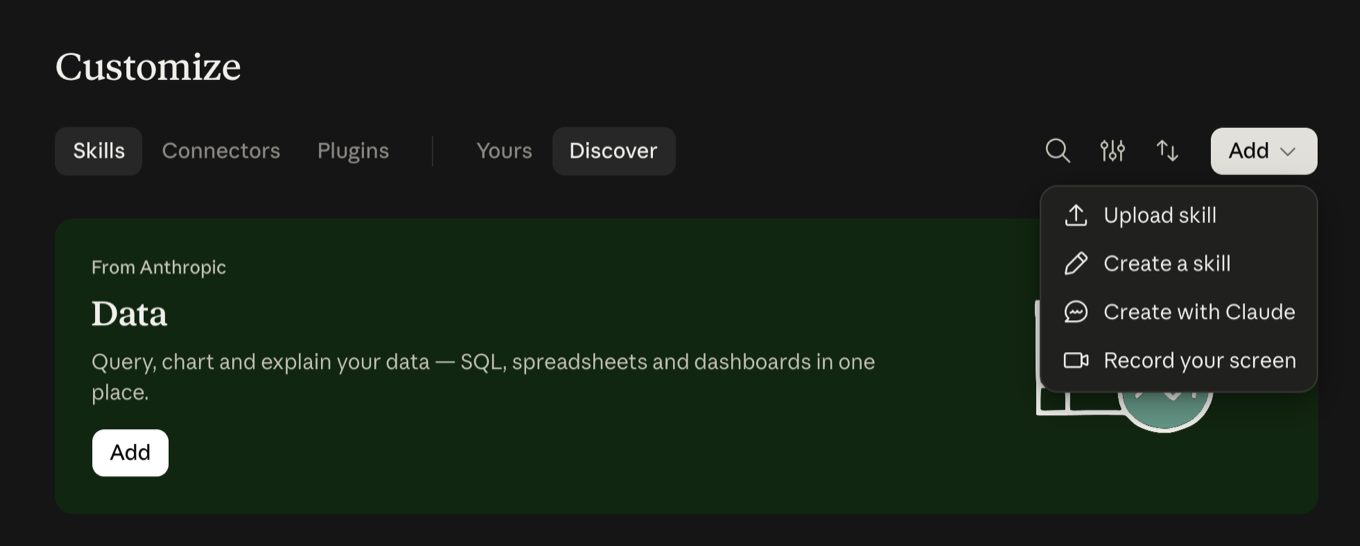
In the skills list, click +, then Create skill, and upload a ZIP of the skill folder.
Test on an account you know well
Pick one that is already live.
Run it on the new account
Close the gaps
Send the Conflicts and Not found sections to the AE. That is a five-minute reply for them instead of a meeting.
Schedule it
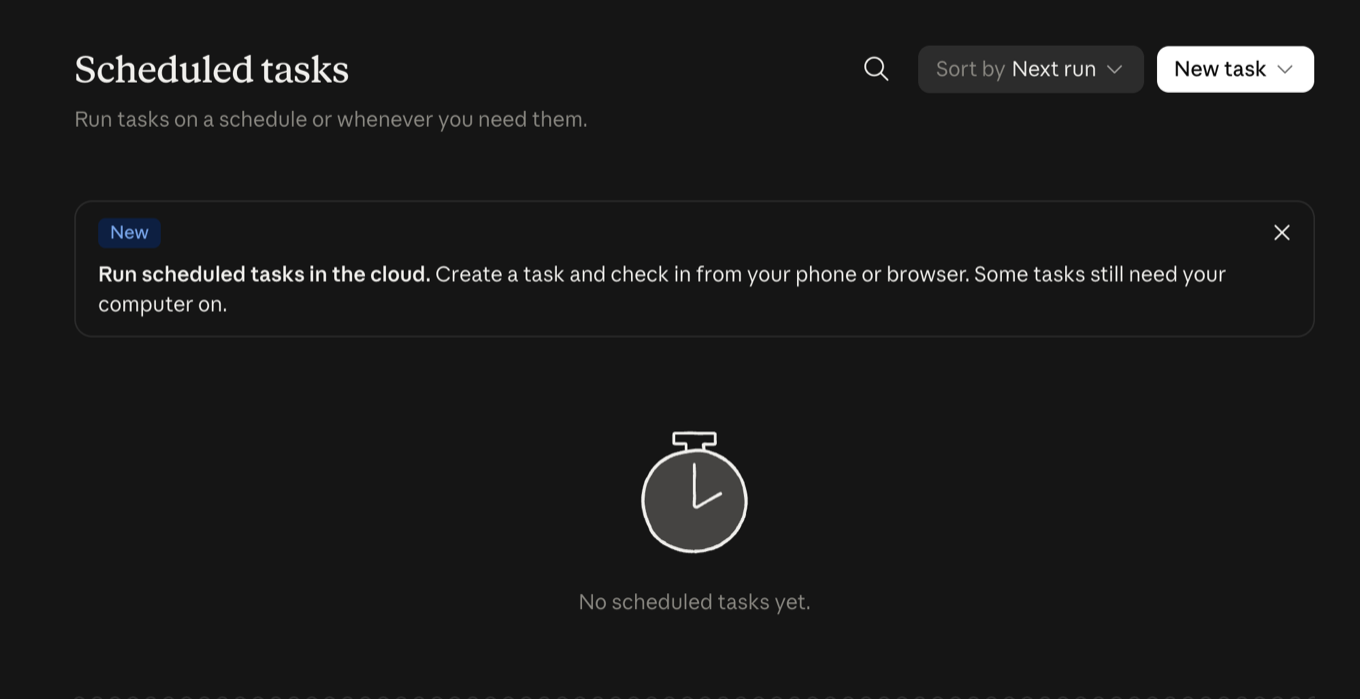
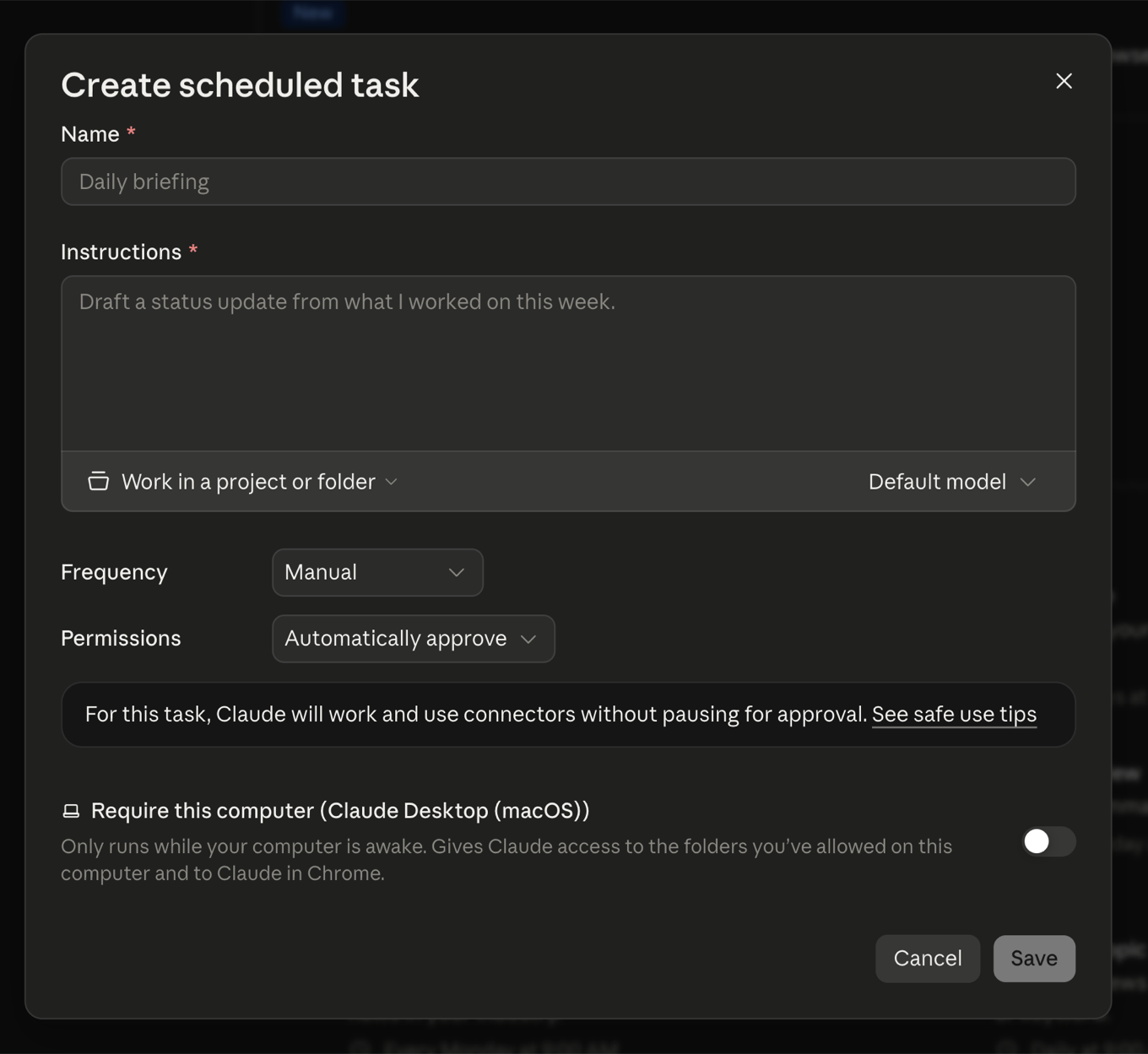
Scheduling is done via Claude Cowork, which is being consolidated into Claude. Create a task, set a frequency, and decide whether it runs in the cloud or requires your machine to be awake.
Share it
On Team and Enterprise plans, colleagues can share skills with each other once an owner enables sharing. On other plans, each person uploads their own copy.
What to keep an eye on
- The skill file, which you update whenever your playbook or SOW template changes.
- Connector access — and noticing when it lapses.
- Remembering to run it for each new deal.
- Spot checks on quality as volume grows.
- Version drift, once five people hold five copies.
- The brief itself, which is a snapshot and goes stale the day after kickoff.
The skill file
Save this as SKILL.md inside a folder, add your assets/template.docx, zip the folder, and upload it.
---
name: kickoff-brief
description: Compile an implementation kickoff brief as a Word document from the countersigned SOW, CRM deal record, sales call transcripts and email. Use when someone asks for a kickoff brief, handoff brief or sales-to-implementation summary for a named account.
---

# Kickoff brief

Produce a one-page internal brief for the person picking up a new implementation. Every line cites its source.

## Workflow

1. **Find the sources.** Countersigned SOW, CRM deal record, sales call transcripts, procurement or pricing email thread. List what you found and what you could not reach before going further. If several SOW versions exist, ask which is countersigned. Never guess.
2. **Draft the brief** using the sections and rules below.
3. **Check it before delivering.** Read back every line under Scope, Commitments, Technical and Risks. If a line has no source, find one or move it to Not found. If a commitment has no verbatim quote, find it or move it to Not found.
4. **Deliver as a Word document** named `<Account> kickoff brief.docx`, following `assets/template.docx`: same sections in the same order, same heading and text styles, source right-aligned beside each line, same header and footer. Replace every bracketed placeholder. Add rows as needed. Keep it to one page where the content allows.
5. **Add a two-line summary in chat:** how many commitments you found, and anything under Conflicts or Not found that the owner should chase with the AE.

## Sections, in order

Customer goal, Scope, Commitments, Technical, Risks, Conflicts, Not found, Sources read.

## Rules

- Every scope, commitment, technical and risk line ends with a source: a document plus a date or section, for example `SOW §4.2` or `Pricing call, 12 Sep`.
- A commitment is anything the customer was told they would get: deliverables, dates, waived fees, named people, service levels. Quote the promise verbatim and name who said it. Do not paraphrase the quote.
- If two sources disagree, list both under Conflicts. Do not pick a winner.
- If a section has no evidence, say so under Not found. Never infer.
- Always check for these and list under Not found if missing: executive sponsor, day-to-day customer contact, go-live date, data migration cut-off, anything finance or legal must approve.
- One sentence per line. No adjectives the sources did not use.
- Internal use only. Do not draft customer-facing text in this skill.

## Known limits

- Layout is not deterministic. Claude rebuilds the document each run using the template as a guide, so spacing, fonts and table structure can vary between runs. Content rules are followed far more reliably than visual ones.
- The source check in step 3 is an instruction, not an enforced gate. Spot-check briefs, especially early on.
- For identical output every run and a hard check that blocks unsourced lines, bundle a build script with the skill. That needs someone who can maintain a small Python file.

## Changing the look

Edit `assets/template.docx` in Word: styles, header, footer, logo. Keep the section names in line with the list above.
If you want identical output on every run, and a hard check that blocks unsourced lines, bundle a build script with the skill. That needs someone who can maintain a small Python file — which is exactly the kind of ownership cost worth weighing before you commit.
Questions about running this across a team? Get in touch.